
Warehouse locations: how to code them for fast putaway and order picking
A warehouse without locations relies on the memory of whoever has been there longest. Here is how to code storage slots, what criteria to follow when putting away incoming stock and how that turns into a short, error-free picking route.

Updated: 22/10/2026
15

Share:
In almost every small warehouse there is one person who “knows where everything is”. While that person is around, orders go out. When they go on holiday, someone new joins or the catalogue grows from three hundred SKUs to three thousand, the trouble starts: walks from one end to the other, products that “aren't there” even though they are, and orders shipped in the wrong size.
The solution is not more staff or more shelving: it is for every product to have an address, and for that address to be recorded in the system, not in someone's head. This article covers how to set up those addresses, where to put each item when it arrives and how to use them so that picking orders becomes a route rather than a search.
What a location is and how to code it
A location is a physical slot identified by a unique code. The most common format goes from large to small:
| Level | Example | What it indicates |
|---|---|---|
| Zone | A | Area of the warehouse (ground floor, mezzanine, bulky goods area) |
| Aisle | A-03 | The aisle within the zone |
| Shelving unit or bay | A-03-02 | The shelving unit within the aisle |
| Level and slot | A-03-02-C-4 | Height (from bottom to top) and position |
A few rules that save problems later:
- Fixed length and leading zeros.
A-03, notA-3. That way alphabetical order matches physical order, and any list sorted by location already comes out in route order. - Number in the direction of travel. If the operator enters an aisle from one end, the numbers increase in that direction.
- Label the slot, not just the shelving, and if you can, with a barcode. Scanning the location when putting stock away prevents the classic “I left it in the one next to it”.
- One code, one place. Do not reuse codes when reorganising without updating the system the same day.
Fixed or random locations
There are two approaches, and most stores end up combining them:
- Fixed: each SKU always has the same slot. It is easy to learn and maintain in a store with a stable catalogue. The drawback is that the slot stays reserved even when the SKU is out of stock.
- Random or chaotic: stock goes into the first suitable free slot and the system records where. It makes better use of space, but without a system that records every movement it is unmanageable.
For a small or medium-sized online store, the practical option is usually fixed locations for picking (the slot orders are picked from) and reserve stock on upper levels or in another zone, where excess can be placed freely.
Putting away incoming stock: the criteria matter
Putting stock away (what logistics calls putaway) is the moment that decides whether picking will be fast or slow. When a supplier order arrives, each product should go to a slot chosen with a criterion, not to whichever free one is closest to the door.
Turnover: what sells most, closest to hand
Rank SKUs by how many orders they appear in, not by units sold. A product that goes out in many single-unit orders costs more walking than one that goes out in a few orders of many units. The highest-turnover SKUs go:
- close to the packing area,
- at waist or chest height, with no bending or ladders,
- at the start of the route.
Review this ranking every season. What you sold in summer is not what you sell in November.
What sells together, stored together
If customers almost always buy the product and its refill, or the case and the screen protector, putting them in adjacent slots turns a two-stop order into a one-stop one.
What gets confused, kept apart
The opposite applies to near-identical variants (two sizes, two voltages, two similar colours): they should not sit in neighbouring slots without a clear marker. Many picking errors are not about carelessness, they are about proximity.
Weight and volume
Heavy items low down and at the start of the route, so they do not crush fragile ones in the trolley. Bulky items in their own zone, even if they turn over quickly.
From the map to the picking route
With well-coded locations, picking an order stops being “going to look for things” and becomes “following a list”. Three common ways to organise it:
- Order by order. The operator picks a complete order, packs it and moves on to the next. Simple, and suitable when there are few orders a day.
- Waves or batches. Several orders are grouped and the warehouse is walked once, picking the total for each SKU; the items are then split by order at the packing table. It saves a lot of walking when orders share products.
- Cluster. The operator walks the warehouse with a trolley holding several boxes, one per order, and at each slot drops what belongs in each box. It combines the savings of a wave with separation by order.
In all three, the list must come out sorted by location and following the direction of the route (in an S through the aisles, without doubling back). And once the wave has started, the list should not change: if a new order comes in halfway through, it goes into the next one.
A location is a piece of data, and data goes stale. If someone moves a product and does not update it, the system will send the whole team to the wrong slot. Make updating the location part of the movement itself, not a task to be done “later”.
Common mistakes
- Locations kept in a separate spreadsheet that nobody updates and that the person picking cannot see.
- A picking list sorted by order number or product name, which forces several trips across the warehouse.
- Not checking what has been picked. Scanning the barcode when taking the product catches the wrong size before it reaches the box.
- Order sheets with internal data (locations, cost prices) that end up inside the customer's parcel.
- Reorganising the warehouse on a Monday in peak season. Do it in a quiet week, with the system updated as soon as you finish.
How to handle it in PrestaShop
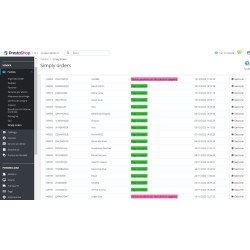
PrestaShop lets you store a location for each product, but it does not use it to organise warehouse work. RKR Picking does: it has a preparation queue with an age-based traffic light, picking waves that can be order by order, batched or cluster-based with the route calculated by location and frozen so the list does not change halfway through, and a mobile picking app with scanning, quantities and “not found”. It includes optional sorting slots, allocation of shortages that completes the oldest orders first, order sheets without the location or other internal data and shipping label verification by scanning. It is compatible with PrestaShop 8 and 9. If your store runs an earlier version, Simple Order, its predecessor, works from PrestaShop 1.7.3: it shows the warehouse only the orders in the statuses you choose, each line with photo, location, EAN13 and quantity, and checks what has been picked with the barcode reader.
-

-
 Payments, subscriptions and checkout Tips, donations and charity round-up in an online store: how to do it properly
 -
 Performance and hosting Full-page cache in PrestaShop: when it helps and what to leave out
 -
 ERP, invoicing and integrations Reconciling the bank and supplier invoices with AI: what to automate and what to check


-
 Regulations for online stores Sales and discounts under the Omnibus Directive: how to advertise a reduced price without risking a fine
 -
 Regulations for online stores The right of withdrawal in 2026: the new mandatory button and everything your store must comply with
 -
 Strategy and conversion The real margin on each order: the calculation almost no store does (and should)
 -
-
 Marketing and loyalty Black Friday and seasonal campaigns: preparing the store technically
 -
 Purchasing, stock and logistics Purchasing management: where an online store gains or loses its margin
 -
 Regulations for online stores Mandatory web accessibility for online stores: what the law requires since 2025 and how to comply
 -
 ERP, invoicing and integrations REST APIs for ecommerce integrations: authentication, limits and errors