
Employee profiles and permissions in the PrestaShop back office
Almost every shop ends up with several super administrators and a shared account or two. We explain how to set up profiles with only what is needed, how to remove an employee without losing their history, and what to keep an eye on afterwards.

Updated: 02/10/2026
11
Share:
Open the employee list in your back office and count how many are super administrators. In many shops the answer is «all of them»: the owner, the logistics person, the customer service person, the agency that built the theme years ago and an account called «shop» whose password half the team knows. It works until the day someone makes a mistake, leaves on bad terms or has their password stolen.
How PrestaShop organises access
Access is managed in Advanced Parameters → Team, with three pieces:
- Employees: each person with their email, their password and an assigned profile.
- Profiles: groups of permissions. PrestaShop ships with some (SuperAdmin, Logistician, Translator, Salesman) and you can create your own.
- Permissions: for each profile, what it can view, add, edit and delete in each section of the menu, and which modules it can configure.
The SuperAdmin profile cannot be restricted: it has access to everything, including employees, payment method settings, module installation and the webservice. That is why it is the profile to hand out most carefully.
The principle of least privilege
Each person should only have the permissions they need for their daily work. It is not about distrust: it limits what can go wrong with a stolen password or a wrong click. A reasonable starting point:
| Role | What they need | What they do not need |
|---|---|---|
| Customer service | Orders (view and change status), customers, messages, returns | Modules, payment methods, prices, employees |
| Logistics | Orders, delivery slips, stock, carriers | Full customer records, configuration, modules |
| Catalogue | Products, categories, images, features | Orders, customers, payments |
| Marketing | Cart rules, specific prices, content | Payments, employees, modules |
| Management | Statistics and general read access | Often not even SuperAdmin for day-to-day work |
There should be two super administrators at most: the person in charge of the shop and whoever maintains it technically. If your agency needs to log in now and then, give it its own account that you enable when needed and disable when the work is done.
Be careful with the modules permission. A profile that can install or configure modules can, in practice, do almost anything: upload a ZIP with its own code or change a payment gateway's keys. Treat it as if it were SuperAdmin.
Why not to share accounts
A shared account is convenient and has three serious problems:
- You do not know who did what. If a price is wrong or an order changes status, the history says «shop», not a person.
- You cannot remove one person without disrupting everyone. When someone leaves, you either change the password and tell the others, or you leave it as it is. It is almost always left as it is.
- The password gets passed around. It ends up in a WhatsApp message, on a sticky note or in the password manager of a personal laptop.
One account per person, always, even if there are only two people and one of them logs in once a month.
When someone leaves the company
This is the moment that gets neglected most. A list of steps that fits on a note:
- Disable the account the same day; do not delete it. Disabled, it cannot log in, and you keep its trail in orders, messages and histories.
- Check what other access they had: FTP, hosting control panel, the shop's email, payment gateway accounts, Google, social media, suppliers. The back office is only one of them.
- Change the passwords they knew, even if they were shared «just for a moment».
- Review any webservice keys they created. An API key does not depend on the employee's account and keeps working even if you disable them.
- Review the modules they installed in their last few weeks.
Accounts nobody remembers
Besides departures, review the whole list every few months:
- Employees who have not logged in for a long time.
- Email addresses on domains that are neither yours nor your current agency's.
- Test accounts created during an installation or a migration.
- More super administrators than you remember creating.
A common case
A sports equipment shop changes agency. The previous agency had two super administrator accounts, one of them created for an intern who was there for one summer. Nobody disables them because «they don't log in any more». Months later, one of those passwords appears in a leak from another service where it had been reused, and someone logs into the back office with it. No vulnerability was needed: an account that no longer had an owner was enough.
A forgotten account with a weak password is a door nobody is watching. And if super administrators appear that nobody created, it is not an oversight: it is the typical trace of an SQL injection in a module, and it must be treated as an incident.
Passwords and access
- Long, unique passwords for each employee, stored in a password manager.
- A back-office folder with its own name, not the installation default.
- HTTPS across the whole back office, without exceptions.
- Two-factor authentication if your version or a module allows it, starting with the super administrators.
- PrestaShop and modules up to date: permissions are useless if a bug in a module lets someone create an administrator without going through the form.
Customer support without granting more permissions
A frequent reason for handing out super administrator accounts is that customer service «needs to see what the customer sees». The usual workaround is to ask the customer for their password or to create test accounts, and both are bad ideas. It is better to have a controlled way to log in as the customer, limited to the profiles you choose and with every access logged.
How to solve it in PrestaShop
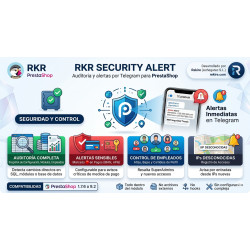
RKR Security Alert keeps a snapshot of employees and webservice accounts and alerts you via Telegram about every creation, change or removal, highlighting super administrator accounts and promotions to that profile, even when they are made by direct SQL. It also warns you when an employee logs into the back office from an IP address that is new for them, and its audit flags inactive administrator accounts. RKR Acceso maestro takes care of support: it lets you log into a customer's account from their record, their order or the lists, with a single-use link, only for the employee profiles you choose (by default, SuperAdmin only) and with a log of which employee logged in as which customer, when and from which IP.
-

-
 Strategy and conversion Customer registration: what to ask for, what not to and how to handle businesses
 -
 Payments, subscriptions and checkout Tips, donations and charity round-up in an online store: how to do it properly
 -
 PrestaShop development Who changed that price? Product change history in PrestaShop


-
 Regulations for online stores Sales and discounts under the Omnibus Directive: how to advertise a reduced price without risking a fine
 -
 Regulations for online stores The right of withdrawal in 2026: the new mandatory button and everything your store must comply with
 -
 Strategy and conversion The real margin on each order: the calculation almost no store does (and should)
 -
-
 Purchasing, stock and logistics Purchasing management: where an online store gains or loses its margin
 -
 ERP, invoicing and integrations REST APIs for ecommerce integrations: authentication, limits and errors
 -
 Marketing and loyalty Black Friday and seasonal campaigns: preparing the store technically
 -
 Regulations for online stores Mandatory web accessibility for online stores: what the law requires since 2025 and how to comply