
Security audit of a PrestaShop store: what to check and in what order
A security audit is not running an antivirus. It means reviewing, in order, the places where an attacker gets in, stays and gets paid. This is the list we use, with what to look at for each point.

Updated: 15/10/2026
20

Share:
There are two moments to audit a store: when you suspect something is wrong and when everything seems fine. The first is urgent; the second is the one that prevents the first. In both cases the list is the same, and order matters: first what allows someone to get in and stay, then what allows them to get paid, and finally what allows you to recover.
This is not a list of configuration best practices, but of concrete checks: what to open, what to look for and what your findings mean.
Before you start: do not destroy evidence
If the audit is prompted by suspicion, first make a full copy of files and database exactly as they are, and work on it whenever you can. If there is an infection, you will need to know since when and what it touched, and that is lost when you clean up.
Another rule: do not mark anything as fine while you are reviewing. If your monitoring tool creates a "normal state" baseline, do not create it until you have finished. A baseline made on a compromised store treats the infection as clean forever.
1. Employees
- List all employees and their profiles. Do you recognise every SuperAdmin?
- Look for accounts with consecutive identifiers at the end of the list, outside email addresses or empty names: it is the typical trace of an SQL injection.
- Review the accounts of people who no longer work with you, of former agencies and test accounts. A forgotten inactive account is a door.
- Check that everyone who should has two-factor authentication turned on.
2. Webservice accounts
This is the door nobody remembers. Check under Advanced Parameters → Webservice:
- How many keys there are, what each one is for and whether any has no description.
- What permissions they have. Write access to the configuration or any permission on employees is a lot of power.
- If the webservice is enabled without HTTPS enforced, the key travels in clear text.
Do not disable a key "just in case" without knowing what it is: it is often the ERP or marketplace integration.
3. Modules
- List the installed modules with their version and compare it with the latest one published by their author.
- Look for those with published security advisories and those that have been abandoned.
- Look for folders in
modules/with no registered module: the orphans. - Be wary of modules with no recognisable author, impossible compatibility claims or descriptions that explain nothing.
- Review
override/: every file there modifies the core.
4. Changed files
The most valuable check does not depend on recognising any pattern:
- Compare the core with the official ZIP of your exact version, including
vendor/. A core file should never change except through an update. - Compare each module with its original package. Whatever was not in the package was put there by someone.
- Look for PHP where there should be none:
upload/,download/,img/, images with code inside. - Look for JavaScript files with disproportionate lines stuck at the beginning or end.
- Be wary of dates, which can be faked. What counts is the content.
5. Templates and payment settings
This is where the attacker gets paid, so it deserves its own point:
- Review the checkout templates of all installed themes, not just the active one, looking for
<script>tags you do not recognise. - Check the details of each payment method: the bank transfer IBAN, gateway keys, PayPal accounts.
- Review the modules that let you insert HTML or code into the header or footer.
- Compare the paid orders of the last few weeks with what has reached the bank or the gateway.
6. Store configuration
- The store URLs (domain and paths): a change here redirects the traffic.
- The outgoing email settings: a changed SMTP server allows emails to be read or diverted.
- Debug mode turned off in production and the
install/folder deleted. - The back office folder with a name other than the default one.
7. Scheduled tasks
A malicious cron job lives outside the web tree, so no file scan will see it. Review the tasks in the hosting panel and, if you have access, the account's crontab. A line that downloads something and pipes it to a shell, decodes base64 or runs inline PHP has no legitimate use. Also review the account's authorised SSH keys.
8. .htaccess and permissions
- The root
.htaccess: look for redirects conditional on the browser or the referrer, which only affect mobile users or visitors arriving from a search engine. - The
.htaccessfiles inupload/,img/,download/andvar/: that they exist and really block execution. - In PrestaShop 8 and earlier, whether
modules/allows.phpfiles to run by URL. - That there are no world-writable folders or configuration files readable by anyone.
9. Logs
- Web server access logs: POST requests to module files you do not know, or many requests to the same controller just before a change.
- FTP and hosting panel logs, which are separate from the web logs.
- PHP and PrestaShop error logs: a new error in a file whose version has not changed is a clue.
- Check that no log can be accessed by URL from outside.
10. Backups
- Do they exist, are they daily and are they off the server?
- Have they ever been restored to check that they work?
- Are there old copies lying around in the web root, downloadable by anyone?
- How far back do they go? If the infection is months old, you need an earlier copy.
And once you have finished
With everything reviewed and clean, now is the time: create the integrity baseline, change the credentials and leave monitoring running. And note down what came up about versions: if the store is on an unsupported PrestaShop or PHP, or has modules that cannot be updated, the next audit will find the same thing. Keeping the store up to date is what makes the next review a short one.
How to solve it in PrestaShop
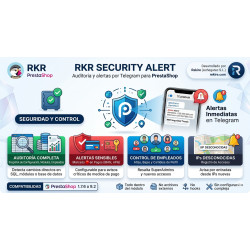
RKR Security Alert automates much of this list: it monitors employees, modules, configuration (with payment changes flagged as critical), store URLs and webservice accounts; compares the core with the official ZIP; scans files for backdoors, web shells and skimmers; tracks the hash of the checkout templates of every theme; reviews scheduled tasks and folder hardening, and runs 14 server configuration checks. It installs in first-audit mode, with no baseline until you mark the report as reviewed. RKR Sentinel adds monitoring of errors and of payments that do not end in an order. And if you would like the audit done by people, with a Rekire support hours pack we do it ourselves, clean up whatever turns up and hand you what remains to be done.
-

-
 Strategy and conversion Customer registration: what to ask for, what not to and how to handle businesses
 -
 Payments, subscriptions and checkout Tips, donations and charity round-up in an online store: how to do it properly
 -
 PrestaShop development Who changed that price? Product change history in PrestaShop


-
 Regulations for online stores Sales and discounts under the Omnibus Directive: how to advertise a reduced price without risking a fine
 -
 Regulations for online stores The right of withdrawal in 2026: the new mandatory button and everything your store must comply with
 -
 Strategy and conversion The real margin on each order: the calculation almost no store does (and should)
 -
-
 Marketing and loyalty Black Friday and seasonal campaigns: preparing the store technically
 -
 Regulations for online stores Mandatory web accessibility for online stores: what the law requires since 2025 and how to comply
 -
 Purchasing, stock and logistics Purchasing management: where an online store gains or loses its margin
 -
 ERP, invoicing and integrations REST APIs for ecommerce integrations: authentication, limits and errors